
Google Veo 3 Video Prompt Examples and Best Practices (Professional Guide)
Google Veo 3 is an advanced AI video system that turns detailed natural-language prompts into coordinated visual and audio scenes. It understands multiple production elements such as setting, lighting, camera movement, subject behavior, and overall creative goals to produce more cinematic and professional results. Using film-style logic, Veo 3 helps creators generate high-quality videos faster with less manual editing. Through the Google Veo 3 Demo, marketers, educators, and content creators can quickly transform complex ideas into polished, production-ready videos with improved efficiency and visual control.
Why Google Veo 3 Changes Everything
Google Veo 3 is designed for professionals. It offers fast, scalable, and high-quality AI video production. You don’t need traditional filming setups. It’s great for many creative and business needs. This makes it perfect for teams and creators who want reliable, professional results.
It’s ideal for users who want scalable video production. You don’t need traditional filming, crews, or studios.ly total of 12,500 credits, making thoughtful and strategic prompt Demo essential for maximizing value.
8-Step Google Veo 3 Video Prompt Framework
The most successful Google Veo 3 prompt examples follow a structured method that captures multiple creative and technical elements at once. This proven framework, used by professional creators, helps reduce randomness and consistently produces high-quality, cinematic results by clearly defining both visual and audio direction.
1. Define the Scene Type
This step defines what is happening in the video and the overall format. Clearly stating whether it is a product demo, explainer, interview, or cinematic scene helps Veo 3 understand the structure and intent of the video from the start.
Describe the Environment and Location
This step tells Veo 3 Demo exactly where the scene takes place. Defining the environment such as a studio, office, outdoor location, home, industrial area, or natural setting helps create more realistic, relevant, and visually consistent scenes.
Set Lighting for Emotional and Visual Tone
Lighting defines the emotional tone and visual impact of the scene. By specifying soft, dramatic, warm, or cool lighting, you guide Veo 3 to create the desired mood and enhance the overall cinematic quality.
Control Camera Movement and Framing
Camera movement and framing control how the viewer experiences the scene. Specifying options like locked tripod, dolly movement, wide shots, close-ups, or aerial views helps create professional composition and stronger visual storytelling Demo.
Add Clear Subject and Focus Details
This step ensures Veo 3 Demo understands exactly what the viewer should focus on. Clearly defining the main subject and visual priority helps prevent distractions and keeps the scene aligned with your creative intent.
Choose Tone and Visual Style
This step defines the visual personality Demo of the video. Choosing styles like professional, cinematic, friendly, corporate, minimal, realistic, or stylized helps Veo 3 match the tone to your brand and creative goals.
Guide Audio and Ambient Sound
This step controls how the video sounds and feels to the Demo viewer. Specifying dialogue style, ambient noise, room tone, background music Demo, or sound effects helps create a more immersive and realistic audio experience.
Clarify the Final Output Goal
This step defines the purpose of the video Demo. Clearly stating whether the goal is to explain, Video , educate, build trust, or drive conversions helps Veo 3 Demo align the visuals and audio with your intended outcome.
Professional Google Veo 3 Prompt Examples (Real Use Cases)
Product Demo Video prompt Example
Prompt:
“Studio product demo, clean white background, soft diffused lighting, slow dolly-in camera movement, medium close-up framing on the product, neutral professional tone, subtle ambient studio sound, goal: highlight premium materials and branding clearly.”
Interview Setup Video prompt Example
Prompt:
“Corporate interview scene Demo, modern office background, soft key light with gentle fill, locked tripod camera, medium close-up framing on speaker, professional and calm tone, clean room audio, minimal background noise, goal: establish credibility and trust.”
Sunglasses Dog Café Skit Video prompt
Prompt:
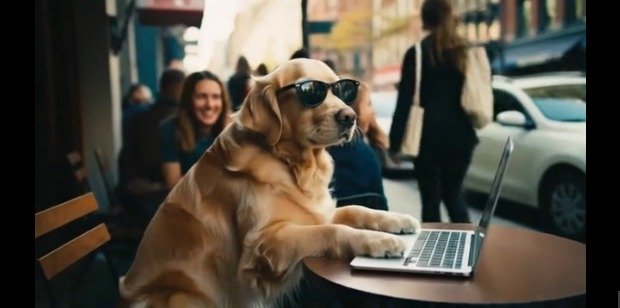
“A sunglasses-wearing golden retriever sits at a café table, paws tapping away on a laptop like it’s hard at work. The scene is filmed with a casual, handheld feel, capturing the funny moment as people walking by give amused, double-take reactions. The atmosphere is cheerful and lively, with café background chatter, soft keyboard clicks, and bright indie music playing. Warm tones from the café interior mix with the dog’s golden fur and colorful street details, creating a playful, upbeat vibe.”
Common video Prompt Mistakes to Avoid
Low-quality Veo 3 results often come from conflicting camera directions, vague environment details, too many visual effects, and missing audio guidance Demo. Undefined goals can reduce focus, while inconsistent character descriptions can break continuity. Clear, simple, and consistent Video prompt help produce more professional and reliable video output.
How Each Prompt Element Affects Video Quality
Prompt Element | Controls | Practical Impact |
|---|---|---|
Scene Type | Structure & pacing | Determines format logic |
Environment | Background realism | Improves credibility |
Lighting | Emotional tone | Affects professionalism |
Camera Movement | Viewer engagement | Adds cinematic quality |
Subject Focus | Attention control | Keeps viewer on key elements |
Tone & Style | Brand perception | Aligns with audience |
Audio Direction | Immersion | Enhances realism |
Output Goal | Visual priorities | Aligns with business intent |
Formatting Techniques for Professional Results
Proper formatting helps Google Veo 3 better understand Video prompt by clearly defining visuals, camera, lighting, audio, and goals. Using consistent structure and labels reduces confusion, improves prompt accuracy, and leads to more predictable, professional-quality video results with fewer revisions.
Separate Instruction Types
Separating visual, camera, lighting, audio, and goal instructions helps Veo 3 interpret each element correctly. This reduces confusion, improves Video prompt accuracy, and results in more consistent, high-quality video output.
Use Short, Logical Sentences
Structured formatting helps the system understand instructions more clearly, makes Video prompt easy to reuse, and allows teams to work with a shared, organized standard reducing errors and improving overall efficiency.
Character Consistency and Continuity
Using consistent character profiles means keeping the same details (face, clothes, age, style, colors, accessories, etc.) for a character in every Video prompt or scene. This helps the AI generate the same-looking character each time, instead of changing their appearance Demo.
Key Elements to Reuse
Age range:Defines the character’s approximate age so they appear the same age in every scene and don’t randomly look older or younger.
Clothing and style: Specifies what the character wears and their fashion style, keeping their look consistent across all scenes.
Personality traits: Describes the character’s behavior and attitude, helping maintain consistent expressions, body language, and overall vibe.
Role in scene: Clarifies the character’s purpose in the scene (e.g., main speaker Demo, background character Demo, lead role), so the AI knows how to present and focus on them.
Advanced Production Tips
This refers to higher-level, professional techniques used to improve the overall quality of your content or AI-generated Video prompt output. These tips go beyond basic settings and focus on fine control, polish, and realism.
Reuse High-Performing Video prompt Templates
Standardizing for speed, quality, and scalability means using the same templates, formats, and workflows every time so work can be done faster, results stay consistently high-quality, and the system can easily handle more projects for Demo or a larger team without confusion or loss of performance.
Test One Variable at a Time
This means making improvements by changing only one specific part at a time instead of modifying everything together. By isolating changes (for example, only adjusting lighting, only changing camera movement, or only editing character details), you can clearly see what actually improved or worsened the result.
Credit and Cost Optimization
Smart Iteration & Rendering Efficiency
This practice focuses on working in a fast, controlled way by testing small outputs first, fixing issues early, reusing setups that already work, and avoiding full re-renders unless they are truly needed. It helps save time, reduce wasted resources, and maintain consistent quality while scaling production efficiently.
Professional Audio Integration in Veo 3
Veo 3 Built-In Audio Advantage
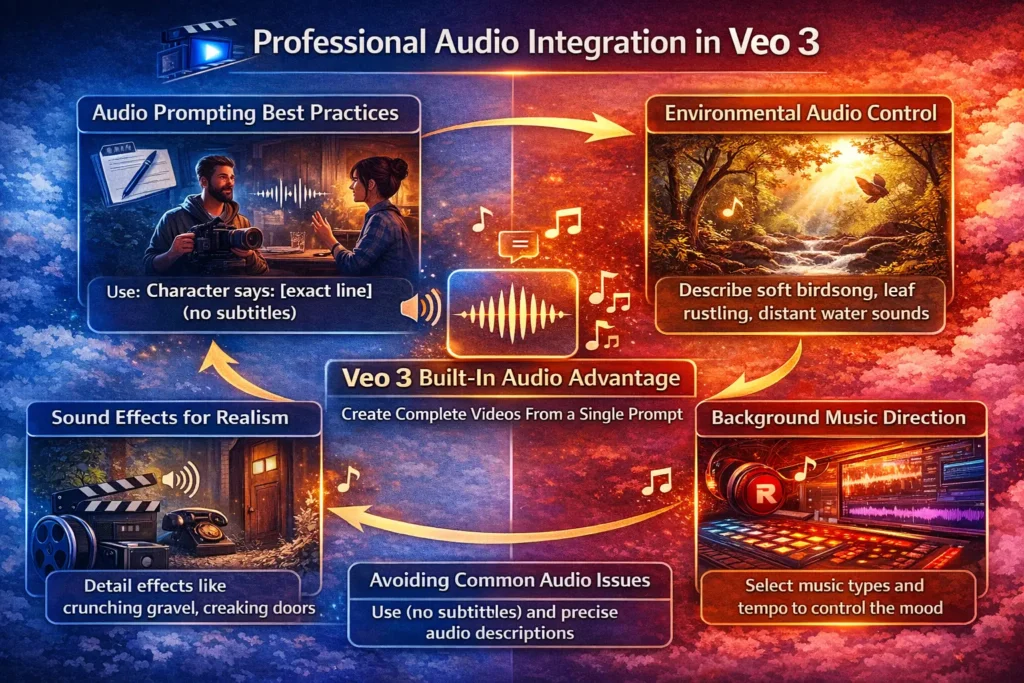
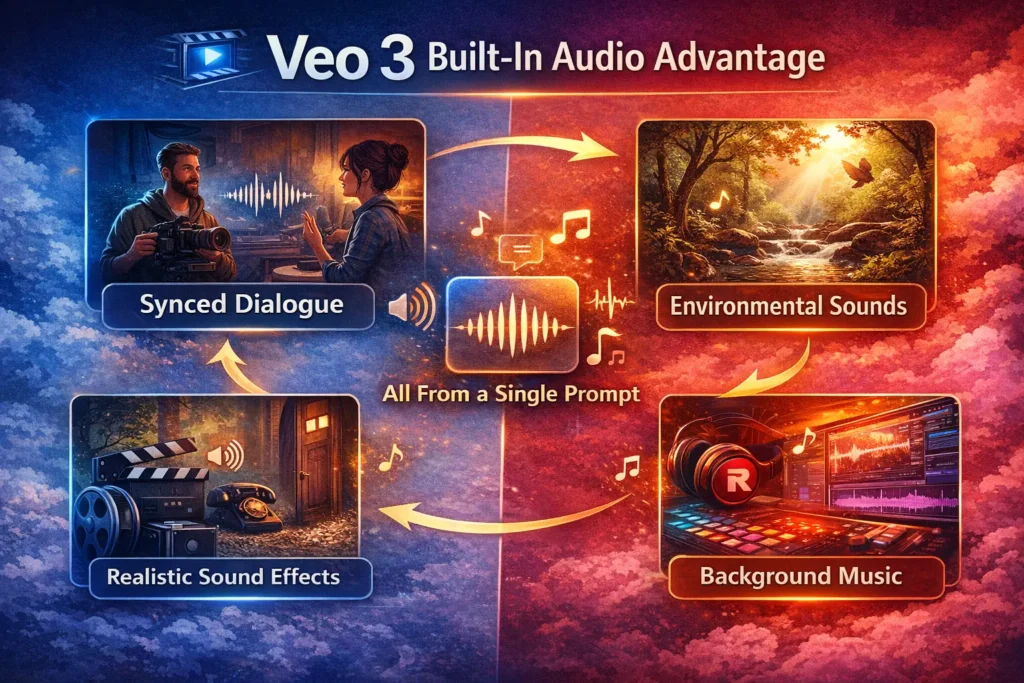
Veo 3 can make audio. You can create videos. Use one prompt Demo to add dialogue, sounds from the environment, and background music. This eliminates the need for outside audio editing. It ensures that voice, effects, and music mix well with the visuals. This creates a more cinematic and professional result.
Audio Prompting Best Practices
When characters need to say certain lines, use this format: Character says: [your exact line]. Avoid quotation marks. This improves dialogue accuracy and timing. Adding (no subtitles) stops automatic on-screen text. This keeps the video clean and looks more realistic for professional use.
Environmental Audio Control
Clearly defining environmental audio helps create immersive scenes. Soft birdsong and gentle leaf rustling create a real outdoor feel. Distant flowing water adds to the scene. They add depth and richness. Clear ambient sounds help Veo 3 Demo set the mood. This way, it avoids random or unwanted noises.
Background Music Direction
Choosing a music style, like an upbeat electronic track, helps create the right mood. A steady, rhythmic pulse is important for controlling the emotional tone of the video. You can set the pace and mood. Just choose music genres and tempos that match your visual storytelling goals.
Sound Effects for Realism
Adding sound effects helps make scenes feel real. For example, you might hear crunching footsteps on gravel. A door might creak, or a phone might ring. Each sound adds to the experience. These small details make the video feel more natural and professionally produced.
Avoiding Common Audio Issues
Always include (no subtitles) with spoken dialogue to prevent unwanted text overlays. Clearly describe all background and ambient audio to avoid unexpected sounds. For just natural sounds, select “No background music.” This keeps the system from adding music that might distract from the scene.Structured audio prompts Demo in Veo 3 improve dialogue sync. They also make environments feel real and raise production quality. This helps creators make professional, immersive videos from one simple, optimised prompt.
Quick Troubleshooting Guide:
Fixing Flat or Weak Lighting
If lighting looks flat, be more specific in your prompt. Use terms like soft rim lighting, studio key light, and dramatic shadow contrast. They help control mood and depth. Avoid generic phrases like “well-lit.” They don’t offer clear guidance. This makes it hard to achieve professional lighting results.
Correcting Camera Focus and Framing
When the camera is not focusing on the right subject, clearly define both the subject and the framing. For example, use close-up on the woman’s face or centered subject in a wide establishing shot. This helps Veo 3 understand visual priority and improves composition accuracy.
Removing Unexpected Visual Elements
If unwanted objects or elements appear, describe what should be in the scene instead of what you don’t want. For example, use open desert environment or infinite clean white backdrop. Positive, descriptive prompts reduce random or incorrect visual additions.
Fixing Incorrect or Missing Audio
When audio sounds wrong or is missing, specify it clearly. Use direct instructions like urban ambience, soft jazz background, or no background music. Precise audio descriptions improve synchronization and prevent Veo 3 from adding unintended sounds.
Strategic Tips for Faster, Scalable Results
High-quality production at scale depends on smart workflows. Refine prompt Demo to save time. Minimise re-renders for better efficiency. Use consistent standards. This keeps output quality high for every project.
Using Templates to Work Faster
Create reusable prompt templates for your most common video formats. Templates Demo speed up production, cut errors, and keep style and structure consistent. This makes your Veo 3 workflow faster, more scalable, and more professional.
Correcting Camera Focus and Framing
When the camera is not focusing on the right subject, clearly define both the subject and the framing. For example, use close-up on the woman’s face or centered subject in a wide establishing shot. This helps Veo 3 understand visual priority and improves composition accuracy.
Removing Unexpected Visual Elements
If unwanted objects or elements appear, describe what should be in the scene instead of what you don’t want. For example, use open desert environment or infinite clean white backdrop. Positive, descriptive prompt reduce random or incorrect visual additions.