
How to Use Google Veo 3 Complete Guide
Master Google’s most advanced AI video model with this step-by-step guide.
A complete tutorial covering everything from setup to creating
professional-quality videos.
720p
HD Quality
8 sec
Video Length
€1.12
Per Video
2 min
Generation
How Google Veo 3 Works?
Text Understanding:
Veo 3 leverages advanced language models to interpret your prompt, recognizing not only objects and actions but also cinematic terms, artistic styles, and emotional nuances.
Scene Composition:
The AI builds a deep semantic map of the scene, organizing object placement, motion, lighting, and camera angles even before the
video generation starts.
Video Synthesis:
Powered by diffusion models trained on millions of videos, Veo 3 generates each frame in sequence, preserving smooth motion, temporal consistency, and lifelike physics throughout.
Quality Enhancement:
Final processing ensures smooth motion, correct lighting, and HD quality output at 720p resolution with proper frame
interpolation.
How to Get Access to Google Veo 3?
Instant Access via Google Veo 3
- Sign up at veo3io.com
- Get 100 free credits
- Start creating immediately
Time to first video: 2 minutes
Google Direct (Not Recommended)
- Join waitlist at VideoFX
- Wait 3-6 months
- Maybe get approved
Success rate: <10%
US only, professional creators priority
How to Use Google Veo 3?
Step-by-Step Tutorial
Access V2 Studio
After logging into your Google Veo 3 account, head to the veo 3 from your main dashboard to start creating your videos.
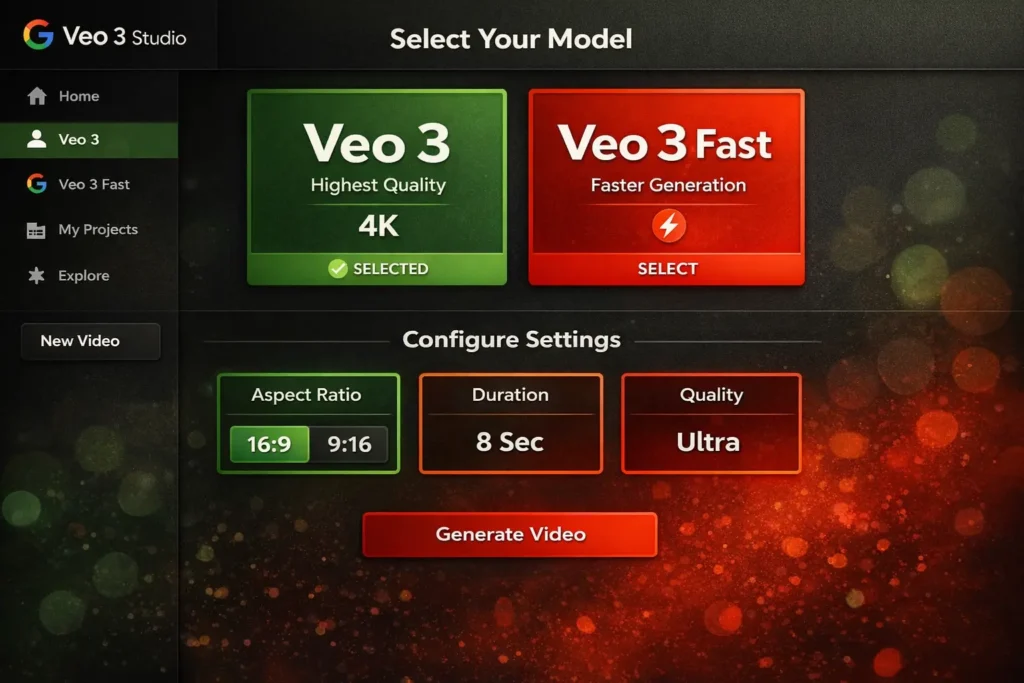
Select Veo 3 Model
Choose between Veo 3 for the highest video quality or Veo 3 Fast for quicker generation.
Select Veo 3 Model
Choose between Veo 3 for the highest video quality or Veo 3 Fast for quicker generation.
Configure Settings
Select your aspect ratio (16:9 or 9:16), set the duration (8 seconds), and adjust the quality settings to match your project needs.
Write Your Prompt
Describe your video in detail — include the main subjects, their actions, the visual style, and any camera movements you want to include.
Example: “A majestic eagle soaring through mountain peaks at sunset, cinematic aerial shot, golden hour lighting”
Generate & Download
After clicking Generate, allow 2–5 minutes for processing. Once ready, preview your video and download it in HD quality.
Google Veo 3 Prompting Guide:
Good Prompts
Specific & Detailed
A sleek red sports car drifts around a Tokyo street corner at night, neon lights reflecting off its surface, captured in dramatic slow motion.
Camera Instructions
Drone circling a lighthouse above stormy seas, with intense waves and dramatic light effects.
Style References:
Cyberpunk city at night, neon reflections on wet streets, Blade Runner vibe, rain, and dense atmospheric fog.
Aviod These
Too Vague:
Create a cool video
Inconsistent:
A contrast of darkness and brightness featuring partially visible
objects.
Too intricate:
A scene with 20 characters, each engaged in multiple
actions simultaneously.
How to Use Pro Prompting Formula:
Use this structure for best results:
[Subject] + [Action] + [Environment] + [Style/Mood] + [Camera Movement]
A knight riding a horse + galloping through a dense forest + soft morning mist + epic fantasy tone + dynamic tracking shot following the motion.
Google Veo 3 Pricing & Credits:
300 credits
Veo 3 Premium
~€2.52 per video
8 sec
Veo 3 Fast
~€1.12 per video
100 free
New User Bonus
12+ HD images
Expert Tips & Tricks:
Start with Veo 3 Fast:
Test your prompts using Veo 3 Fast (6 credits) before creating the final version with standard Veo 3 (8 credits). It’s a smart way to save credits while refining your prompt.
Add Cinematic Descriptions:
Add camera movements such as “dolly zoom,” “tracking shot,” “aerial view,” or “close-up” to achieve a more professional, cinematic look.
Incorporate Art Style References:
Reference specific visual styles like “Studio Ghibli animation,” “Christopher Nolan–style cinematography,” or “Wes Anderson’s symmetrical composition.”
Batch-Produce Related Videos:
Generate several variations of similar scenes while your creativity is flowing — AI tends to perform best when working with related prompts in sequence.
Evolve and Perfect:
If the first result isn’t perfect, review what worked and what didn’t, then tweak your prompt — even small adjustments can lead to major improvements.